Custom Workflow
Custom Workflow
Workflows in StackSpot EDP allow you to create personalized flows for creating and managing Applications and Infrastructure in a structured and reusable way. You can also customize existing Workflows by adding new steps to already defined flows.
Customizing a Workflow enables different Stacks to have distinct creation and deployment flows, tailored to the specific needs of each technology, ensuring that all mandatory security steps are executed. Below are the main concepts of Workflow Customization in StackSpot EDP:
-
Workflow
A Workflow can be extended, adapted, and customized like any other Content. To allow this customization, you must add Extension Points to the Workflow. -
Extension Points
Extension Points act as a “bridge” between a Workflow and a Custom Workflow. They are specific points added before and/or after Jobs in a Base Workflow, allowing you to insert additional Jobs in your Custom Workflows. -
Custom Workflow
A Custom Workflow is an enhanced version of a Workflow that includes additional Jobs and Steps. This enhanced version contains Extension Points. To publish a Custom Workflow from Stacks in your Studio, your StackSpot EDP user must have the necessary permissions. Additionally, you can optionally use Plugins or Actions from other Studios.
Consider a Workflow to be the foundation of a housing complex. It establishes the essential rules and structures that are fixed and shared by all the houses built on top of it.
In contrast, the Custom Workflow functions like the individual houses within that complex. Each house can be distinct, featuring unique colors, balconies, or roofs, but they all rely on the same foundational structure to exist.
Some important rules:
- You can have only the Workflow (the foundation), which is enough is enough to execute standardized processes.
- The Custom Workflow is a second, separately created content that relies on a Workflow. It allows you to add your own Jobs and Steps, which are executed before or after the Jobs defined in the Workflow.
- The Workflow creator defines the main rules, which cannot be changed by those who create the Custom Workflow. You can only customize at the permitted points, ensuring security and standardization.
- The Custom Workflow is ideal for adapting workflows to the specific needs of each context, technology, or project, without compromising the main structure.
- Customization is done by including additional Plugins and Actions, which can be executed at specific points in the flow.
How to add extension points in a Workflow
A Workflow acts as a template for developing a Custom Workflow. The creator of the Workflow determines where Extension Points can be added within the flow.
Once these Extension Points (extension point) are established, anyone creating a Custom Workflow can specify which Jobs will be associated with these points.
To customize a Workflow, you must include Extension Points. If there are no Extension Points present, it will not qualify as a Custom Workflow.

Check the steps to add Extension Points in a Workflow.
Use an existing Workflow or create a new one, see the process for creating a Workflow.
Step 1. Run the following command in the STK CLI:
stk create workflow
- Name your workflow: Provide a name for the Workflow.
- Workflow description: Enter a description for the purpose of your Workflow.
- Workflow type: select the
reusableorcreateoption, for example.
Step 2. Fill in the options as in the example below:
schema-version: v1
kind: workflow
metadata:
  name: base-workflow
  display-name: base-workflow
  description: Customizable workflow
  version: 1.0.2
spec:
  type: reusable
  label: Customizable workflow example
  docs:
    en-us: docs/en_us/docs.md
    pt-br: docs/pt_br/docs.md

  inputs:
    - type: text
      name: name
      label: Name

  jobs:
    - id: extension_point_1
      type: extension-point

    - id: job_1
      label: Job 1
      depends-on:
        - extension_point_1
      steps:
        - id: say_hello
          label: Job 1 - Say Hello
          type: run
          script: |
            echo Hello {{name}} from Job 1!

    - id: job_2
      label: Job 2
      depends-on:
        - extension_point_1
      steps:
        - id: say_hello
          label: Job 2 - Say Hello
          type: run
          script: |
            echo Hello {{name}} from Job 2!

    - id: extension_point_2
      type: extension-point
      depends-on:
        - job_2

    - id: job_3
      label: Job 3
      depends-on:
        - job_1
      steps:
        - id: say_hello
          label: Job 3 - Say Hello
          type: run
          script: |
            echo Hello {{name}} from Job 3!

    - id: job_4
      label: Job 4
      depends-on:
        - job_1
      steps:
        - id: say_hello
          label: Job 4 - Say Hello
          type: run
          script: |
            echo Hello {{name}} from Job 4!

    - id: job_5
      label: Job 5
      depends-on:
        - job_3
        - job_4
      steps:
        - id: say_hello
          label: Job 5 - Say Hello
          type: run
          script: |
            echo Hello {{name}} from Job 5!

    - id: extension_point_3
      type: extension-point
      depends-on:
        - job_5
Step 3. Publish your Workflow. Run the following command:
stk publish workflow studio-name
For more details about the
stk publish workflowcommand, see the Workflow commands documentation.
Step 4. Run your Workflow:
stk run workflow studio-name/workflow-name@version
Now you need to create Extension Points in your Workflow. Follow the steps below:
How to create a Custom Workflow from a Workflow
Follow the steps below to create a Custom Workflow from an existing Workflow:
Step 1. Run the following command in the STK CLI:
stk create workflow
- Name your workflow: Provide a name for your Custom Workflow. The input names defined in the Custom Workflow cannot conflict with those from the original Workflow. In other words, they cannot be the same.
- Workflow description: Provide a description for the purpose of your Workflow.
- Workflow type: Select the
extensionoption. - Select the Studio: Select the Studio where you published your Base Workflow.
- Select the workflow: Select the Workflow you want to extend. It is mandatory to select Workflows that already have one or more Extension Points.
A new custom Workflow will be created with the defined extension points. These extension points can be modified to insert jobs into the workflow.
schema-version: v1
kind: workflow
metadata:
  name: my-workflow-extension
  display-name: my-workflow-extension
  description: Testing workflow extension
  version: 1.0.2
spec:
  type: extension
  label: Tipo do Workflow
  targets:
    - app
    #- infra
  docs:
    en-us: docs/en_us/docs.md
    pt-br: docs/pt_br/docs.md
  extends: testes-import-inputs/base-workflow@1
  inputs:
    - type: text
      name: surname
      label: Surname
  extension-points:
    - id: extension_point_1
      jobs:
        - id: extension_point_1_job_1
          label: Extension 1 job 1
          steps:
            - id: step_id_1
              label: Extension point 1 Job 1 Step 1
              type: run
              script: |
                echo "Hello {{name}} {{surname}} extension_point_1_job_1"
        - id: extension_point_1_job_2
          label: Extension point 1 job 2
          depends-on:
            - extension_point_1_job_1
          steps:
            - id: step_id_1
              label: Extension point 1 Job 2 Step 1
              type: run
              script: |
                echo "Hello {{name}} {{surname}} extension_point_1_job_2"
    - id: extension_point_2
      jobs:
        - id: extension_point_2_job_1
          label: Extension point 2 job 1
          steps:
            - id: step_id_1
              label: Extension point 2 Job 1 Step 1
              type: run
              script: |
                echo "Hello {{name}} {{surname}} extension_point_2_job_1"
        - id: extension_point_2_job_2
          label: Extension point 2 job 2
          steps:
            - id: step_id_1
              label: Extension point 2 Job 2 Step 1
              type: run
              script: |
                echo "Hello {{name}} {{surname}} extension_point_2_job_2"
Add the Extension Points inside the jobs list in the Workflow specification. See below for a description of each attribute:
- extension-points: This is a list of Extension Points where you can insert additional jobs. Each Extension Point contains an ID that corresponds to a point defined in the base Workflow. For each Extension Point, you can include a list of jobs, using the same format as jobs in a standard Workflow.
In addition to adding jobs to the Extension Points, a Custom Workflow can also specify additional inputs. You can use both the inputs and outputs from the base Workflow, as well as those from the Custom Workflow, in expressions. The execution order will proceed as follows:
- Workflow inputs;
- Extension Point inputs.
-
id: Identifier of the Extension Point, used as a reference in custom Workflows. It must be unique and cannot duplicate any job ID from the base Workflow.
-
extends: It specifies the Workflow to be extended. The syntax follows the pattern
studio/workflow@version-number.
For example:
studio-java/create-java-api-workflow@1.
-
type: Fixed value "extension-point", indicates that this is a reserved space for customization, not a regular job.
-
depends-on: List of dependencies to define the execution order of the extension point during Workflow execution.
-
type: Fixed string 'extension'.
Step 2. Publish your Workflow. Run the following command:
stk publish workflow studio-name
Passo 3. Execute your Workflow with the defined Extension Points, use the following command:
stk run workflow studio-name/name-workflow@version
- Name: Name the Workflow.
- Last name: Enter the Extension input.
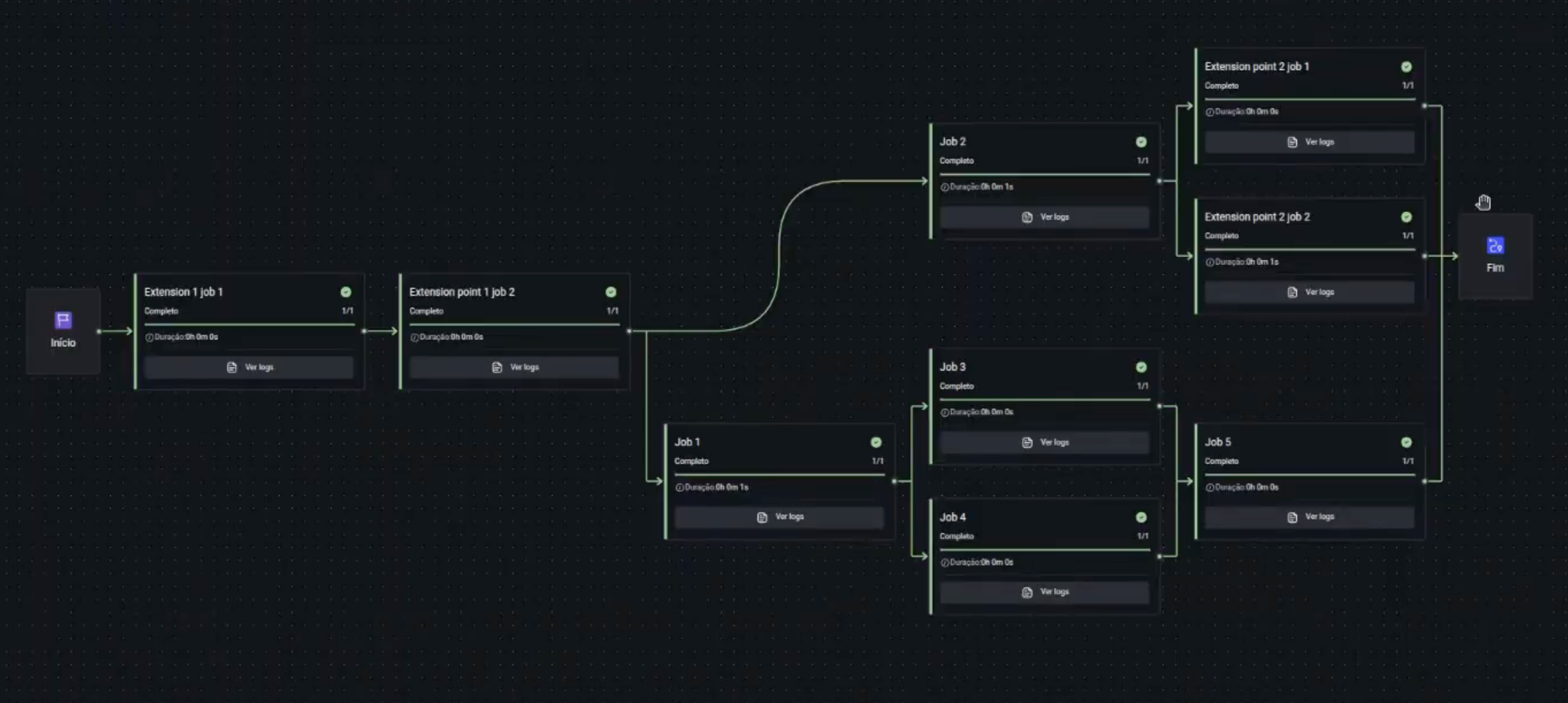
By using the URL provided in the terminal, you can access the Customized Workflow along with its Extension Points and corresponding jobs.
See an example below: